
AT A GLANCE
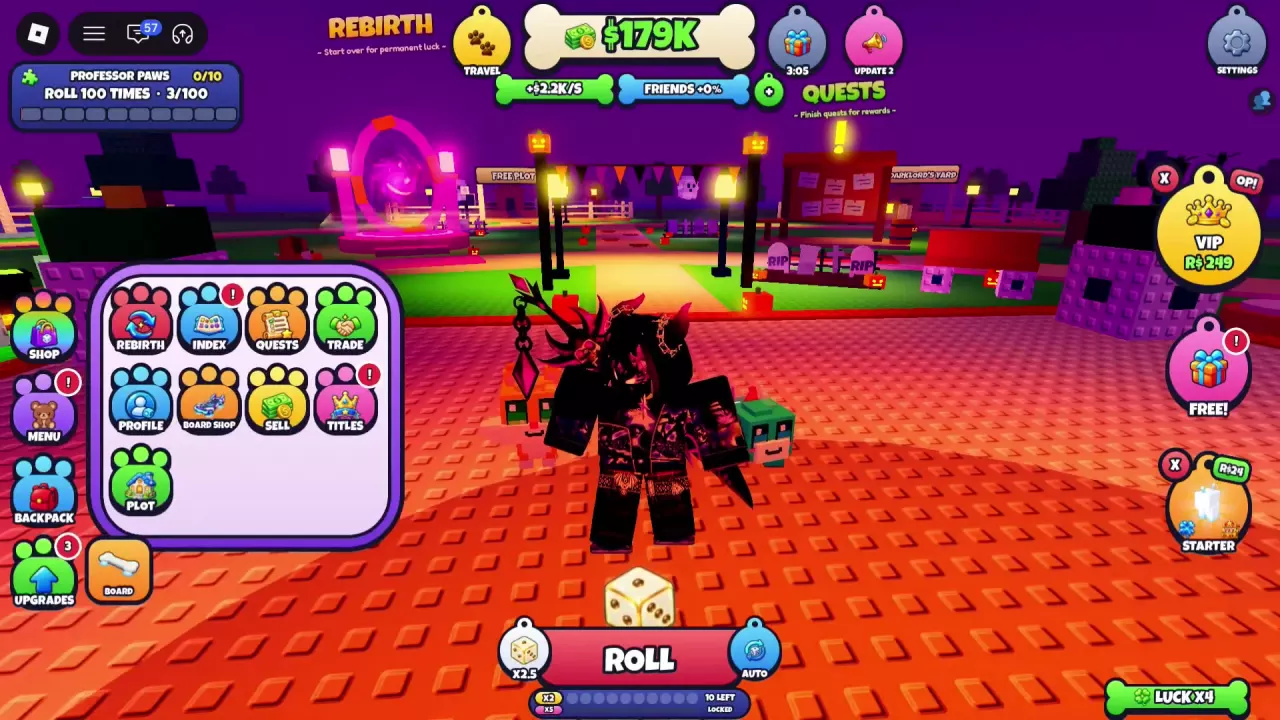
Click MENU on the left for Rebirth, Index, Quests, Trade, Profile, Board Shop, Sell, Titles, and Plot. Open SETTINGS in the upper-right corner for Trade Requests, roll animations, pet and effect displays, and UI Scale. Use E at interaction prompts, B to open or close Board Barn, H to ride a board, and the left mouse button when the battle attack prompt appears.
Main Menu Reference
Click MENU on the left side of the screen to expand these nine entries.
| Entry | What to find there |
|---|---|
| REBIRTH | The Rebirth entry. Rebirth also appears as a separate contribution in the Dice Shop's luck breakdown. |
| INDEX | Collection categories, progress, and milestone rewards. See the Index guide. |
| QUESTS | The quests entry. Professor Paws's tracked roll objective progresses as you roll; see the rolling and quest guide. |
| TRADE | The trading entry; find its request setting below. |
| PROFILE | The Profile entry. |
| BOARD SHOP | Board Barn, where you can browse boards and preview Paw Board. See hoverboards. |
| SELL | The separate selling entry. See storage upgrades and the Sell menu. |
| TITLES | The titles entry; see title names and displays. |
| PLOT | The Plot entry. Haunted Manor Plot is a named option sold under Haunted Gear in Pawcula's Spooky Shop for 3,000 Candy; see the Halloween shop. |
Trade Requests and the Separate Sell Entry
For trading, open MENU > TRADE. To find the request preference, open the SETTINGS gear in the upper-right corner and look for Trade Requests at the top left of the panel.
MENU > SELL is a separate entry from TRADE. Use the storage and Sell reference for the selling entrance and related upgrade nodes.
Broomstick Board is Untradable, as labeled in Pawcula's Spooky Shop. Its acquisition route is the Halloween shop exchange.
Find and Recognize Titles
Open MENU > TITLES to find the title menu. Titles can appear above your character's head.
- Millionaire appears as MILLIONAIRE above the character.
- Climber has an unlock notification that directs you to MENU > TITLES during Meadow Tower progression.
For arena controls and stage progression, see the Meadow Tower guide.
Roll Animation and Popup Options
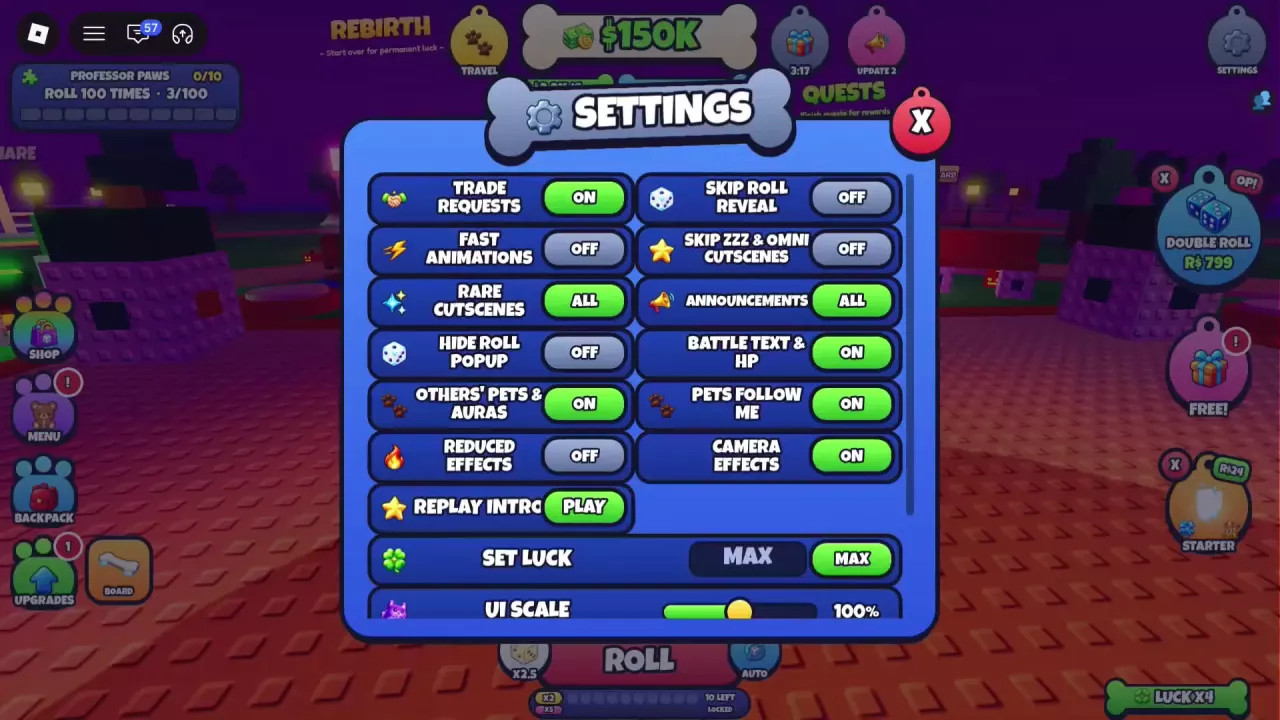
Open SETTINGS in the upper-right corner. The roll presentation options are split between the panel's two columns:
| Option | Where to look |
|---|---|
| Fast Animations | Left column, beneath Trade Requests |
| Rare Cutscenes | Left column, beneath Fast Animations |
| Hide Roll Popup | Left column, beneath Rare Cutscenes |
| Skip Roll Reveal | Top of the right column |
| Skip ZZZ & Omni Cutscenes | Right column, beneath Skip Roll Reveal |
For a less intrusive roll display, start with Hide Roll Popup and Skip Roll Reveal. For cutscene preferences, look at Rare Cutscenes and Skip ZZZ & Omni Cutscenes.
During a RARE ROLL presentation, a separate SKIP button can appear at the lower right. Use it to skip that presentation.
For automatic rolling and Lucky Roll progress, use the rolling guide.
Effects, Pets, Camera and UI Options
Use these options in SETTINGS to find the display preference that matches what you want to change.
| Display preference | Setting | Panel position |
|---|---|---|
| Other players' pets and auras | Others’ Pets & Auras | Left column |
| Visual effects | Reduced Effects | Left column |
| Your pets following you | Pets Follow Me | Right column |
| Camera effects | Camera Effects | Right column |
| Battle text and health information | Battle Text & HP | Right column |
| Interface size | UI Scale | Bottom of the panel |
If effects make the scene harder to read, start with Reduced Effects and Camera Effects. If pets and auras are the distraction, look for Others’ Pets & Auras and Pets Follow Me. Battle Text & HP is the display setting to check when you want to read combat feedback.
For interface sizing, locate the UI Scale slider and percentage readout near the bottom. The panel also contains Announcements in the right column, Replay Intro with a PLAY button in the left column, and a Set Luck row above UI Scale.
Known Keyboard and Mouse Controls
| Input | Action | When to use it |
|---|---|---|
| E | Use the nearby interaction prompt | For example, TALK at Count Pawcula or EXPEDITIONS at Captain Barnacle |
| B | Open or close Board Barn | When browsing hoverboards |
| H | Ride your board | With a board available to ride |
| Left mouse button | Perform the prompted shoot/attack action | Inside combat when the attack prompt appears |
Find the NPC landmarks in the locations guide. For board purchases, previews, and riding, see hoverboards. For AUTO, STOP, and LEAVE ARENA, see the tower controls guide.